Contact Mic & Circuit Bending Workshop with CMKT4 January 28

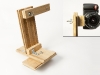
Join the members of the circuit-bent rock band CMKT4 for a workshop on building your very own EconoMIC Bottle Cap Contact Microphone (from Creme DeMentia). CMKT4 will show you how to solder up a piezo-electric pickup and house it sturdily in a recycled bottle-cap housing of their own design! Stick around for a set from the band as the tool-handle dip on your freshly built contact microphone dries.

CMKT4 is also going to offer their Build a Bending Buddy workshop. Attendees should bring simple electronic toys that make fun noises for experimentation. There will be some examples of some already bent toys and a little show and tell/performance. CMKT4 will provide literature on how to wire up different bends and ICs, for which the Bending Buddy will be good preparation.

Additional take-home kits and other surprises will be available, come build a mic and see and hear some of the circuit-bent instruments you’ve read about on www.GetLofi.com up close. Bring your own instruments and objects to amplify!

The Contact Mic workshop will be $15 and the Bending workshop will be $20. You can do both for $30. Additional kits will be on sale for $10, and there will be fully assembled mics in several varieties for sale as well. We’ll have some other fun goodies also. Interested onlookers are encouraged to donate if they don’t want to build a kit.

CMKT 4 are Austin Cliffe, Zach Adams, and Jeff Cox. The circuit-bent/rock trio has made it their mission to leave no hackerspace behind on their way to their next Maker Faire; they want to bring new devices, sounds, and ideas to your town. They are constantly working to make new and interesting devices and music.

The workshop is from 1-6PM on Saturday January 28th. We hope to see you there making some noise with us!

Column Progress…

The molding and detail for a set of columns.  Lots of curves and steps.

For a while now, I’ve been wanting to build some columns.  I know, this is not a “traditional” project, but the reasoning is sound: I’m going to be living in student housing for 4 years whilst I earn my GIS degree at UW-MADison, ergo, I can’t paint, I can’t put up crown molding, and I can’t knock down walls just because I damned well feel like it.

That being the case, I’ve designed several projects that will let me bring some architectural detail into my apartment in a non-destructive fashion and I’ll be bringing you blow-by-blow accounts as things progress.

The columns themselves are just large cardboard tubes, much like the ones carpet is typically spooled on (thanks, Rich).  Everything else, well, that had to be designed and custom manufactured here at the makerspace…

I’ve become thoroughly enamored with our DIY CNC Router, care of Ron and Tom.  After giving a demo on the wonders of 3D profiling, I thought I should delve into waterline routing which is the technique that I’ve used here.  The detail that you can achieve is pretty remarkable, although there is a significant amount of hand-finishing required for that craftsman look.

Tonight, I cut the main pieces for the base and the capital of the column.  Once I have this first one more-or-less done, I’ll know enough about the workflow that I can build the other three with less trouble.  In the end, each column will have a space in the top for a pot so I can train my philodendrons down and around them.

BoxMaker

We’ve got a Laser Cutter! We can cut things… like boxes. So head on over to BoxMaker and make a box!

As far as materials, that’s a little trickier. I tried wood, but currently the laser cutter can’t handle cutting plywood. Here you can see the results of me trying.

Wood

No matter… I moved on to acrylic, since we’ve got a lot of acrylic scrap to play with…

Acrylic

That worked much better! Hopefully once we do some laser maintenance (cleaning and what not) it might be able to cut wood. Of course you could always use BoxMaker to create your box and cut it on the CNC Router instead.

So here’s my laser-cut acrylic box. Notice anything? The tabs are way too big! In my frustration of not being able to cut wood, I switched to the acrylic, but didn’t measure the thickness and create a new file, and since it was not as thick as the wood, I got the tabs all wrong.

Box

Still, BoxMaker is an awesome tool, and I look forward to getting the cutting part right next time.

My neverending quest for quick turnaround prototype PCBs

For years I have dreamed of a fast way to prototype PCB for projects I am designing.

20 years ago I was using rub on drafting tape and stencils – slow and spotty results.

I tried to modify a plotter to plot resist directly to a PCB – no luck.

Magic markers – I’m no artist.

5 years ago I hacked a laminate router by tapping into the stepper controllers and adding a better Z axis – It can rout boards ok, but takes some tweaking.  It only does fairly wide traces.  But its great at drilling holes!

2 years ago I tried the inkjet printing systems – lots of smeared wet ink and poor registration, not very effective.

I opened up a laser printer and tried to get a board to go through it – almost worked, but the fuser was to narrow to take the board.

Although I haven’t found a fast system yet, I get by with the PNP Blue material and a good laminator.  Although I am regularly disappointed when dust, not quite clean boards, minor wrinkles and other issues leave gaps in traces that need touching up.

Which brings us to the latest attempt:

Now that the maker space has a small laser cutter I am trying to find something I can coat a board with and either burn away or melt onto the board to act as an etch resist.

Early attempts with paint had moderate results – our laser cutters on only 25W so it didn’t burn it cleanly.  I have heard that using flat black paint and a more powerful laser works.

Paste wax and markup fluid weren’t dark enough for the laser to vaporize (thinking of trying black crayons)

The latest attempt uses laser printer toner (just like the PNP only skipping the printing and iron on steps.)

The problem is how to get an even coat on a board without it blowing around.  Static electricity has potential (just like what they do inside a laser printer) but I don’t like the idea of a 5KV power supply exposed and handling powered toner is an automatic mess.

So for the first attempt I mixed the toner with rubbing alcohol (30% water).

Messy stuff!

I painted it on with the tongue depressor but it seemed to coat evenly and took only a few minutes to dry:

It mixes well and paints on fairly easily, here are some sample prints I did at various power and speed settings.  I cleaned the board fairly aggressively with paper towel and rubbing alcohol.

None are quite clean enough to become PCBs but they are getting close.

Although the toner paint looked dry, it may still have had some water in it.  I plan on trying a batch with denatured alcohol (100% – no water) and see if it works better.

3D Profile Cutting Class This Sunday @ Noon!

An example of a flower, cut with our CNC router

The much anticipated 3D profiling lecture/demonstration will be held at the Makerspace this Sunday at noon!

Learn how to take a model made in any 3D program and bring it to life!

I’ll be going over the basic workflow starting with exporting 3D models as .STL files, various CamBam settings, and finishing with a cutting demonstration on the CNC router, hopefully before the Packers kickoff at 3.

All are welcome!

Experiment in Shapes 1, Helium

This started off as an overzealous doodle, inspired by my refusal to doodle squares.  After a fashion, I decided to turn it into a Windows icon via Illustrator…

An Abstract image; Yellow proto-square with spheres and other shapes.

It still haunted my dreams, so I used the Makerspace’s CNC router to create a variant in real life MDF….

I had a certain amount of trouble with getting the yellow enamel paint to dry fully before I added another coat.  This led to scaling of the top coat which was most ugly.  Tom suggested using a 100-watt bulb in an enclosure, to ensure that the piece was at the proper temperature to allow the paint to dry.  His suggestion worked perfectly and I now have a new art piece hanging on my wall.

Oh, the name.  Originally, this was “Art…with a Handle,” but that seemed to lack imagination.  Next, it was “Dream Explosion,” but that was a bit much.  After allowing the name to percolate a bit, “Dream Balloon” came through and this led to “Helium.”  So there.

Kinetic Rolling Ball Sculpture at McDonald’s….

So, a few members found this rolling-ball kinetic sculpture from “Eddie’s Mind” at a local McDonald’s and I just had to take a peek.

Rolling Ball Kinetic Sculpture, First Impression

Rolling Ball Kinetic Sculpture, First Impression

The truth is: it’s fascinating.  If this weren’t at a McDonald’s, I’d be here almost every day.  The track is set up in such a way that the balls hit switches on their way down, which alters the path of the next ball to follow.  The large, white bongos that you see in the lower center of the pic are only triggered about once every 4 minutes.  This sculpture really is a marvel.

I also needed to test out my camera to see what kind of video it would take, and I must say that I’m moderately impressed….


Smartboard Projector Project Abandoned

Back in August, Tom acquired several Smartboard-brand projectors and was interested in getting them to work as a normal projector would.  As you may recall from my original post on this project, these projectors will not display anything other than an error screen without their accompanying interactive whiteboards connected.

The original approach was to simply substitute my own video signal by swapping out some cables.  There is a dual-link DVI cable that attaches to the projector lamp assembly through the telescoping neck of the projector to its wall-mounted computer base, the Unifi 35.  I tried simply connecting a computer to the DVI connection on the lamp, but the lamp wouldn’t power on.  We eventually surmised that the lamp and the Unifi 35 were communicating somehow through the DVI cable and the lamp wouldn’t power on unless the computer detected that it was attached. Computers with DVI connections have the ability to detect when display devices are connected as well as instruct them to power on or off.

That led to trying to swap out individual pins in the cables.  I built three DVI breakout boards and set up a breadboard so I could mix and match pins from two sources and combine them to send on to the projector lamp.  I tried using the digital pins from my own source (a G5 Macintosh) and the analog pins from the Unifi 35.  After a lot of trial and error, it seemed the projector was communicating with the Unifi 35 somehow using either the analog pins on the DVI connection, the second digital link, or both.  Also, it seemed I could disconnect some pins after the projector was powered up, but I couldn’t start without them.  It looked something like this (table copied from Wikipedia):

Pin Description Purpose Required?
1 TMDS data 2− Digital red− (link 1) Required at all times
2 TMDS data 2+ Digital red+ (link 1) Required at all times
3 TMDS data 2/4 shield Required at all times?
4 TMDS data 4− Digital green− (link 2) Required at all times?
5 TMDS data 4+ Digital green+ (link 2) Required at all times?
6 DDC clock Required at startup only
7 DDC data Required at startup only
8 Analog vertical sync Required at startup only?
9 TMDS data 1− Digital green− (link 1) Required at all times
10 TMDS data 1+ Digital green+ (link 1) Required at all times
11 TMDS data 1/3 shield Required at all times?
12 TMDS data 3- Digital blue− (link 2) Required at all times?
13 TMDS data 3+ Digital blue+ (link 2) Required at all times?
14 +5 V Power for monitor when in standby Not required?
15 Ground Return for pin 14 and analog sync Not required?
16 Hot plug detect Not required?
17 TMDS data 0− Digital blue− (link 1) and digital sync Required at all times
18 TMDS data 0+ Digital blue+ (link 1) and digital sync Required at all times
19 TMDS data 0/5 shield Required at all times?
20 TMDS data 5− Digital red− (link 2) Required at all times?
21 TMDS data 5+ Digital red+ (link 2) Required at all times?
22 TMDS clock shield Required at all times?
23 TMDS clock+ Digital clock+ (links 1 and 2) Required at all times?
24 TMDS clock− Digital clock− (links 1 and 2) Required at all times?
C1 Analog red Required at startup only
C2 Analog green Required at startup only
C3 Analog blue Required at startup only
C4 Analog horizontal sync Required at startup only
C5 Analog ground Return for R, G, and B signals Required at startup only

After a lot of trial and error, I didn’t seem to be much closer to the goal of getting my own video source to display.  I also began to consider that the manufacturer may have switched around some pins between the Unifi 35 and the projector to prevent consumers from servicing the unit.  The DVI cable I was working with was internal to the machine after all.  There’s no reason any one would ever try to connect their computer’s DVI output to the lamp itself.  Signals leaving the Unifi 35 could be sent on a different pin than the DVI standard suggests and then rearranged back into the standard configuration at the lamp assembly.  I never really dismissed that possibility, but I also didn’t see much to support it.

I trudged on and hooked up an oscilloscope to monitor was was going on with the analog pins, C1 through C5, because they seemed to be critical to the lamp turning on, but not necessarily staying on. This is what I found:

Pin Description In Standby Mode Once Powered On
C1 Analog red 0v constant +3.3v constant:
C2 Analog green +5v constant +5v constant for 0.93 seconds every second then a brief flash for 0.07 seconds of this waveform:

+5v (58% of the time)
0v (42% of the time)
at ~1.2 kHz
C3 Analog blue +5v constant +5v constant for 0.93 seconds every second then a brief flash for 0.07 seconds of this waveform:

~0v and a more complex pattern (0.8 ms/3.5 ms)
+5v (0.8 ms/3.5 ms)
~0v and a more complex pattern (1.1 ms/3.5 ms)
+5v (0.8 ms/3.5 ms)
at ~285 Hz
C4 Analog horizontal sync 0v constant 0v constant for 0.93 seconds every second then a brief flash for 0.07 seconds of this waveform:
C5 Analog ground Reference for all Reference for all

Unsure of what these signals represented, I consulted with Royce, Tom, and a few others and worked up the courage to use a logic analyzer for the first time.  Most of the work was wiring the thing up and assigning names to the leads in the software.  My breakout boards turned out to be more fragile than I expected so I ended up resoldering a all of the flaky connections.  The Intronix 34-channel Logicport Analyzer is pretty slick and comes with some great software tutorials.  Once I got it going, it was fairly straight forward.  I can definitely see how this device can come in handy now that I’ve used it.

One of the first problems I ran into was the multitude of different voltages at work.  The Logicport software has a logic voltage threshold setting to help weed out logic from other signals, but I found myself dealing with signals less than 0v, as well as +3.3v, and +5.0v.  I eventually scanned the spectrum and sat, clicking the threshold up in small intervals of 0.05v, and watched to see if anything appeared on the screen.  It would seem that while in standby mode, some of the the TMDS data pins and the DDC clock and data pins are held above +2.0v.  Around 0.0v, some of the data shields show some variation between low and high during standby but as the projector is starting up, there are definite patterns on TMDS data shields 2/4, 0/5, and the clock shield.  TMDS link 1 shows some activity during startup in the +3.3v range and then shortly after link 2 does as well as the analog red pin.  Why a digital signal might appear on the analog pin is unclear.  I could be measuring it wrong also, but there does appear to be a signal there.  I also checked the analog pins during standby against what I saw with the oscilloscope and the numbers seem to agree except that the C4 horizontal analog sync pin showed voltage at or above +2.00v with the analyzer when the oscilloscope showed no voltage difference at all.

Since I was more interested in the control data than the video data, I focused my attention to the DDC clock and data pins to see if I could decipher how the projector and Unifi 35 were talking to each other.  PC monitors and projectors with DVI connections use a display data channel (DDC) and a standard called I2C (I squared C).  I found some great information on I2C and DDC protocols online here and here.  At +5.00v I read a portion of the communication between the Unifi 35 and the projector and tried to analyze it.  Unfortunately, the data doesn’t seem to follow what I’ve read on the I2C standard. The clock rises and falls unexpectedly, the start/stop commands don’t appear where I would expect them to, nothing resembles a 7-bit device address and there is seemingly no pattern to data.  The other logic analyzer screenshots can be found here.

We considered trying to spoof the USB connection to the whiteboard at one point, but that seemed to be problematic also.  I set up the logic analyzer and monitored the USB connection, but to no avail.  It’s possible that without the board to receive power from the USB port, there’s no way of telling how the board would communicate with the Unifi 35 and projector.  In a last ditch effort some weeks ago, I contacted Smart Technologies, makers of these products, and flat out asked them if the projectors could be used without the whiteboards.  The answer was, unfortunately, no.

I began to lose interest after this and once I got back to the project after the holidays, I decided to finally give up on it.  I would rather use my time on other projects.  It was by no means a waste as I gained more experience etching my own circuit boards, soldering annoying small connections, and I got comfortable with the logic analyzer; assuming I used it right.  I also became wary of computer cable vendors on Amazon.com.  During the project I needed some dual-link DVI cables, but when my order showed up, the second data link pins (the six in the middle of the connector) weren’t even wired.  I stuck a multimeter to them and found continuity on all but those six pins.  Needless to say, I left them some grumpy feedback and got a refund.  Thanks to everyone who helped and gave me advice.  As Shane said, “I doubt anyone else would have gone this far.”  I took that as a compliment.

Food Not Bombs Bronze Pendant and Final Star Trek Assembly

Previously I had blogged about a Star Trek logo that I cast as gift for my sister-in-law. I’ll update that project later in the post, however, I held a second casting back from the blog as it was intended as a gift for my wife.

For a couple of years my wife co-ran Milwaukee’s Food Not Bombs movement. She has always had fond memories of that time and has on more than one occasion brought up their logo: a hand clutching a carrot. So, I decided to make her a pendant with a relieved carving of that logo. To begin with I pulled the jpg logo into Inkscape loaded with the Better Better DXF Output plugin. I used the Inkscape drawing primitives to trace over the major outlines of the logo and then export the tracing to DXF. Once in DXF I imported the file into CamBam where I cleaned of the drawing a little more and defined machining operations for our CNC Router to perform. I turned the outlines into a series of adjacent polygons. (e.g. a wrist polygon, a thumb polygon, etc.) I then setup pocket operations of varying depths on each polygon. Finally, I exported the file to G-Code for consumption by the Mach 3 router control program.

FNB Logo in Mach 3If you look you can kind of see the polygons even if the depth setting of each pocket is not apparent.

Above you can see the pendant in the process of being routed out and also the finished wax mold after routing. Below you can see the pendant after casting! She loved it and wears it frequently. I was a really good feeling to actually put some effort into making a gift this year. It made the act of giving the gift that much more special.

I also completed the Star Trek logo. I turned that into a broach.

Above you can see that I have mounted the Star Trek logo to a plastic backing. I’ve also cut one of Adafruit’s EL Panels way down in size and hooked it up to another one of her small inverters. The small inverter normally cannot run her panels, but after being cut down so much, it wasn’t a problem. Below you can see the two pieces put together.

And finally the finished gift!

As I said, I really enjoyed giving gifts that I made this year. I am going to try to do more of that!


RepRap Build

MakerGear RepRap

It’s not a secret, but I haven’t really posted here about here it yet: I’m building a MakerGear RepRap Prusa Mendel.

I’ve posted a few photos of it in progress in the Make Flickr Pool, and Make mentioned a few of them, but I really need to start writing more about the process. (I’ve posted stuff on Google+ along the way, mainly to get feedback/share with a few other RepRap builders.)

I’ve still got a number of hours to put into it before it’s ready to extrude, but if you want a bunch of posts from someone who already finished theirs, and is doing all the tweaking and documenting it, check out Brazen Artifice. Lots of great posts there!

Once it’s done I’ll be sure to bring it to the space for a demo.